Innhold Show
Natural motion is one of the hardest things for an AI video model to get right. Most of them produce clips that look as if someone smeared petroleum jelly on the lens and told the subject to move in slow motion. Grok Imagine Video is different – and that is why I use it actively in my own video projects.
Grok Imagine Video is xAI’s video model, from the same family as the Grok chatbot and Grok Imagine image model. It is available through an API, including fal.ai, and in my workflow it cost less per clip than competitors such as Seedance 2. That makes it a natural choice when believable motion matters most.
I have used the model for everything from cartoon composites in the streets of Haugesund to living statues and reptilian political satire. Here is what it is, what it is genuinely excellent at, and how to avoid ending up with an illustrated squirrel woman who suddenly grows to seven feet tall and sprouts real fur.
What is Grok Imagine Video 1.5?
Grok Imagine Video 1.5 is xAI’s text-to-video and image-to-video model. You give it a text prompt, a starting image, or both, and it generates a short video clip – typically 4 to 8 seconds – from those instructions. Its clearest niche is short-form video in which convincing motion matters more than exact external-audio synchronization.
The model is not open source, but it is available through an API. In practice, that means you can place it inside your own pipeline, run it programmatically from a script, and combine it with other models. I run it through a small wrapper script that sends the starting image and prompt to the API, then retrieves the finished MP4.
What separates Grok Imagine Video from many competitors is not a specification on a product page. The motion simply looks natural. People walk, dance, and gesture. Objects move with believable inertia. That is exceptionally difficult to produce, and Grok is surprisingly good at it.
What is the model actually good at?
Natural movement is its strength. Human figures move without immediately setting off that little alarm in your head: arms swing, the body has a slight bounce, and the face follows the action. These sound like tiny details, but they make an enormous difference to whether a clip feels believable.
A viewer may forgive a small texture flaw in a short shot, but weightless or hesitant movement breaks the illusion immediately. That is why I value this quality more than another impressive-looking item on a model specification sheet. The motion has to work in the finished sequence, not just in a demo.
The model is also good at what I would call cinematic energy – clips that appear to be trying to communicate something. It does not merely add movement for movement’s sake. The action has direction and rhythm. I used Grok for every non-lipsync clip in the music video Steel and Starlight, and that division of labor was deliberate: Seedance 2 handled the lipsync clips, while Grok handled the rest.
In short, Grok Imagine Video is best for:
- Clips with human movement, including dancing, walking, and gesturing
- Live-action and cartoon composites
- Living statues and animated scenes built from a still image
- Short action sequences with a clear direction
- Atmospheric shots in which mood matters more than exact precision
Live action plus cartoons, Roger Rabbit style
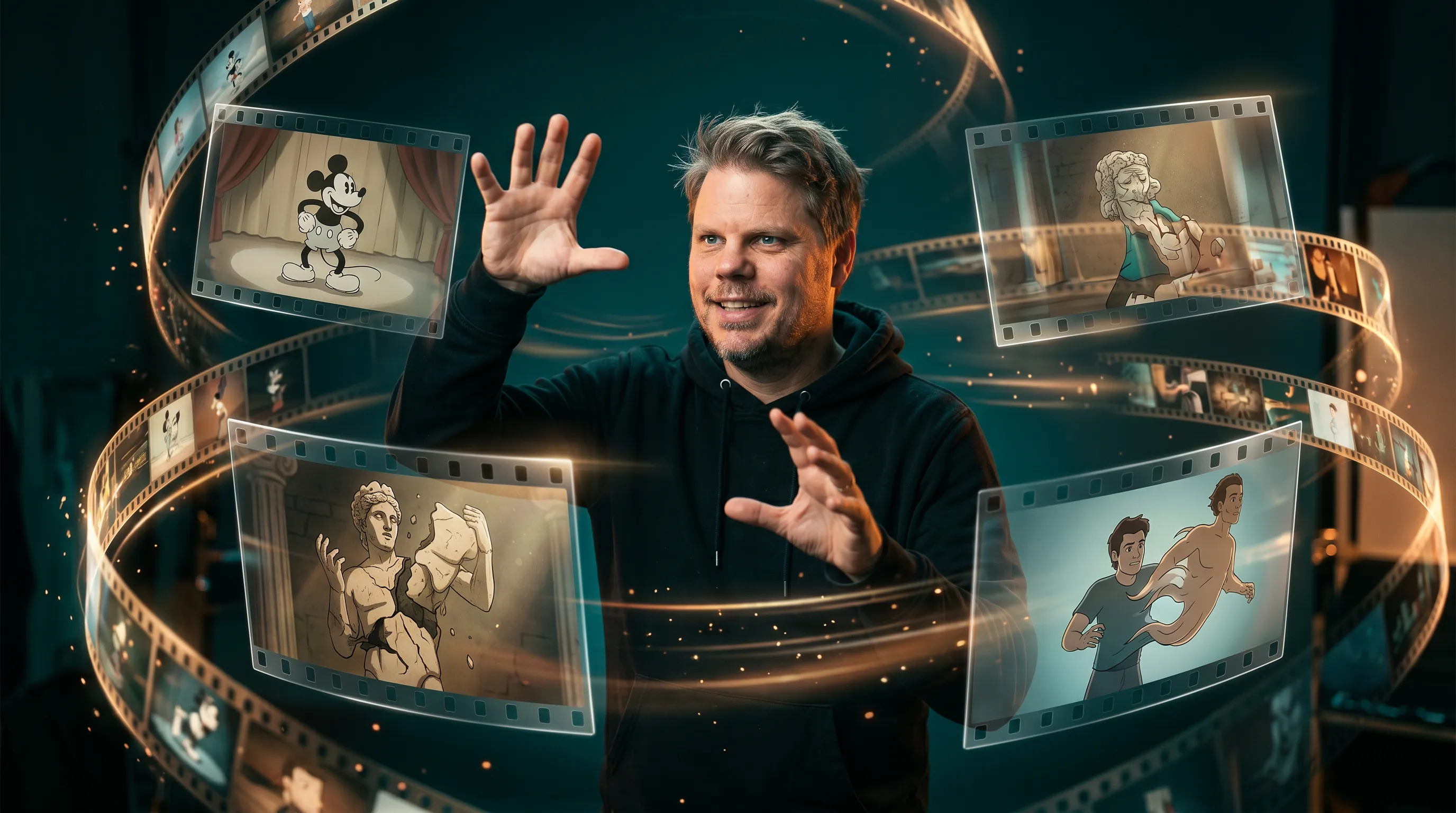
This is the most absurd and entertaining use I have found for Grok Imagine Video. Take a real photograph – a street in Haugesund, for example – add a hand-drawn 2D character, and ask Grok to animate them together. The result has that Who Framed Roger Rabbit quality: a real environment and a cartoon character sharing the same space and moving together.
It worked surprisingly well. A 2D squirrel woman dancing beside me on a real street in Haugesund is exactly as absurd as it sounds, and that is the point. It takes a little more preparation than ordinary text-to-video generation, but the underlying technique is not complicated.
The same technique works for living statues. I made a Marilyn Monroe statue gradually wake up and begin to move. Grok handled the transition from rigid sculpture to organic movement in a way that felt intentional rather than random.
Then there is the reptilian version. I made a video in which the person gradually begins to glitch and reveal a reptile creature beneath the human disguise. I deliberately kept a flawed version with compression artifacts because it looked better than the polished one. Meta-comedy: the reptilian conspiracy somehow looks more convincing with authentic compression weirdness.

The tricks I learned along the way
Grok Imagine Video is not flawless. After a fair number of generations, I collected several lessons that are worth knowing before you spend credits creating the same mistake repeatedly.
Keep the clips short, especially for cartoon composites. Four to six seconds is the sweet spot. Ask for an 8-second clip with a 2D character and the model starts to drift: the character grows, develops more realistic textures, and loses the flat illustrated style that made the shot work. The model tries to correct what it thinks is a problem and makes everything worse. Generate short clips, then join them with ffmpeg concat.
Describe the movement explicitly in the prompt. Do not write “person dances” and hope for the best. Write something like “the person swings their arms to the beat, sways their hips, and smiles broadly.” The more concrete the motion is, the more likely Grok is to deliver it instead of producing a figure that barely shuffles its shoulders.
Ask for “music only, no speech” – or use a comparable instruction when you want a specific soundtrack. Without it, there is a good chance the model will generate vocals, dialogue, or strange ambient audio that clashes with whatever you add later.
Use a background photographed from ground level, not a drone shot. If the background looks as though it was photographed from above or has the wrong perspective, the inserted character can lock into a bizarre scale. The figure may become enormous compared with the scene. A ground-level background gives the model a much better spatial reference.
Act-singing does not work with real external audio. Grok Imagine Video synchronizes the mouth to the model’s own generated audio, not to a separate vocal file you upload. If you need genuine lipsync to a real song, as you would in a music video, Seedance 2 is the right choice. That technical difference is exactly why the two models work well as a pair.
When does Grok Imagine beat more expensive models?
The answer is simple: when natural movement is the priority and you do not need lipsync to external audio.
Seedance 2 is better at lipsync and certain cinematic sequences, but it cost more per clip in the workflow behind this project. Grok Imagine Video delivered more natural movement at a lower cost than most of the alternatives I was using. That made it the sensible option for clips in which motion was the point and synchronization to an external soundtrack was irrelevant.
In practice, I settled on a division of labor. Grok handles natural motion, playful composites, and everything that does not require lipsync. Seedance handles the singing shots. ffmpeg joins it all together. It is cheaper, and the result is better than forcing one model to do everything.
Was Grok Imagine Video the best video model available when I made this project? No – that is the wrong question. The useful question is whether it was the best choice for the jobs it does well at the price it cost. My answer is yes.
Frequently asked questions
How much does Grok Imagine Video cost per clip?
The price varies by provider and clip length. In the workflow described here, it cost less per clip than Seedance 2 and was available through fal.ai on a pay-as-you-go basis, so I paid for the generations I ran rather than relying on a monthly subscription.
Can Grok Imagine Video lipsync a song?
Not to external audio. The model synchronizes to its own generated audio rather than a vocal file you upload. For real lipsync to a finished song, I used Seedance 2. That is the technical reason the two models made a useful pair in my music-video workflow.
Do I need coding skills to use Grok Imagine Video?
You do not need to code when using Grok through its web interface. An API workflow does require basic scripting knowledge, but it also lets you build repeatable pipelines and combine Grok with tools such as ffmpeg for assembling the finished sequence.
How is Grok Imagine Video different from Grok Imagine?
Grok Imagine produces still images, while Grok Imagine Video produces short video clips – typically 4 to 8 seconds – from a prompt or starting image. They are separate xAI models, but they work well together when a generated still serves as the keyframe for a video clip.